To schedule Instagram and Facebook posts in Meta Business Suite, click Create post, choose your Facebook Page and Instagram account under Post to, add your photos and text, turn on Set date and time under Schedule, pick a date and time, and click Schedule. Meta Business Suite is free, it can post to both apps at once, and it lets you write a different caption for each one.
Here’s the full walkthrough, with screenshots, plus the checks we run before any post goes live.
What do you need before you schedule a post?
You need a Facebook Page, an Instagram account connected to it, and permission to post. Meta asks for either full control of the Page or Instagram account, or content permission for it. To post to both apps at once, your Facebook Page and Instagram profile must be connected and in the same business portfolio.
Meta Business Suite itself is free. Meta calls it a free platform to manage your Page, your Instagram account and your ad account in one place.
How do you schedule a post in Meta Business Suite?
- Go to Meta Business Suite on your computer. In the menu at the top left, pick the right Page or Instagram account.
- Click Create post. You can do this from the Home page or from Content. [Screenshot 1]
- Under Post to, choose where the post goes: your Facebook Page, your Instagram account, or both. If they’re connected, both are selected by default. [Screenshot 2]
- Under Media, click Add photo/video. [Screenshot 3]
- Under Post details, write your text. Add hashtags or a location with the icons under the text box. Want a different caption on each app? Turn on Customize post for Facebook and Instagram (more on that below). [Screenshot 4]
- Check the preview on the right. Switch between Facebook Feed preview and Instagram feed preview to see both versions. [Screenshot 5]
- Under Schedule, turn on Set date and time, then choose the date and time. Click Active times to see recommended times, based on when your followers were most active on Facebook and Instagram over the past seven days. [Screenshot 6]
- Click Schedule. [Screenshot 7]
Not ready yet? Click Finish later. Your post is saved in Content > Posts and reels > Drafts.
How do you write a different caption for Facebook and Instagram?
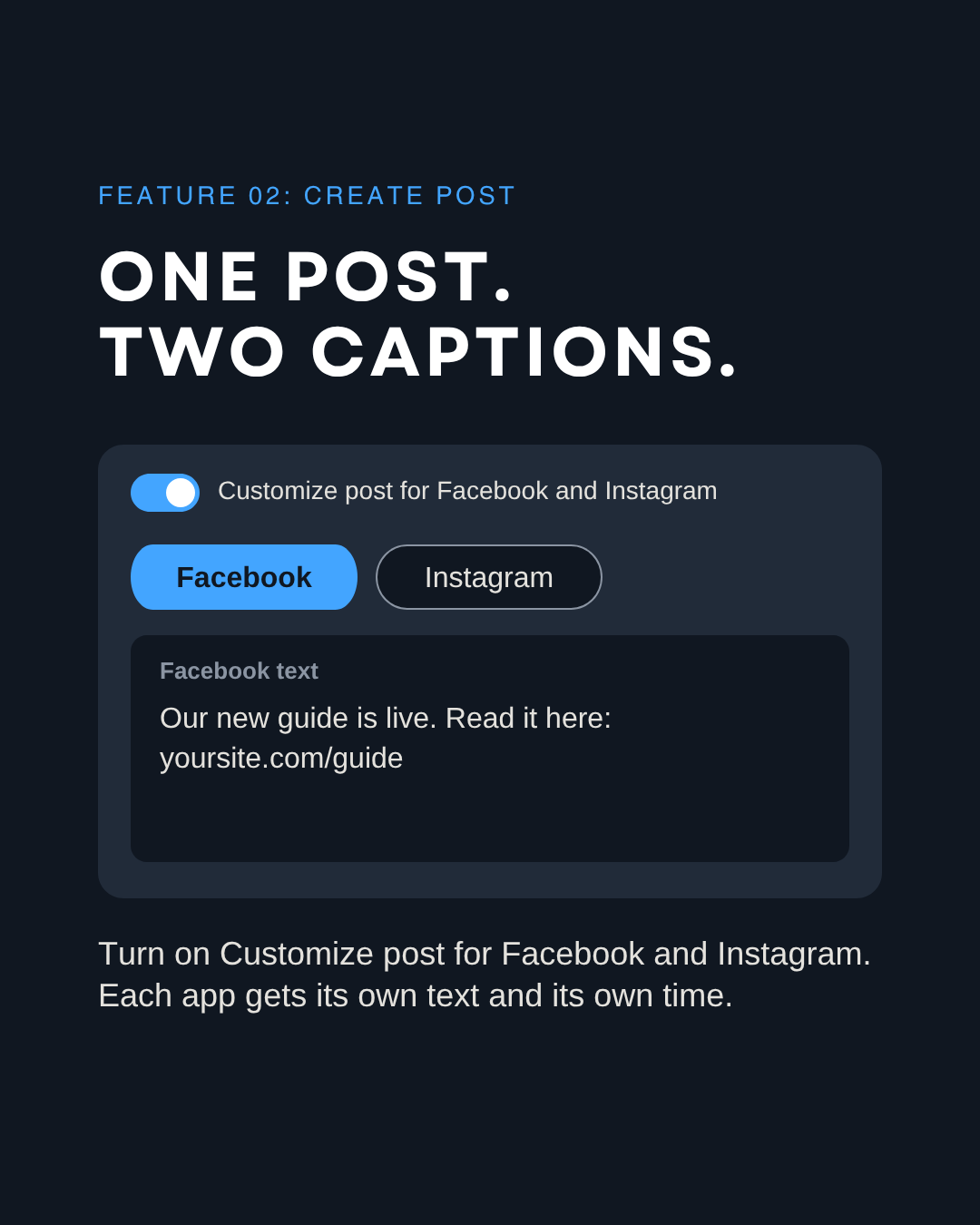
Turn on Customize post for Facebook and Instagram in the Post details section. You then get two tabs, Facebook and Instagram, and each one has its own text box.
Once it’s on, the Schedule section also shows a separate date and time for each app. That’s useful when your Facebook and Instagram audiences are active at different times.
How far ahead can you schedule a post?
For a Facebook Page, Meta lets you schedule a post between 20 minutes and 29 days ahead. If the time you pick is less than 20 minutes away, choose a later time. Scheduling times follow your current time zone.
Where do you find your scheduled posts?
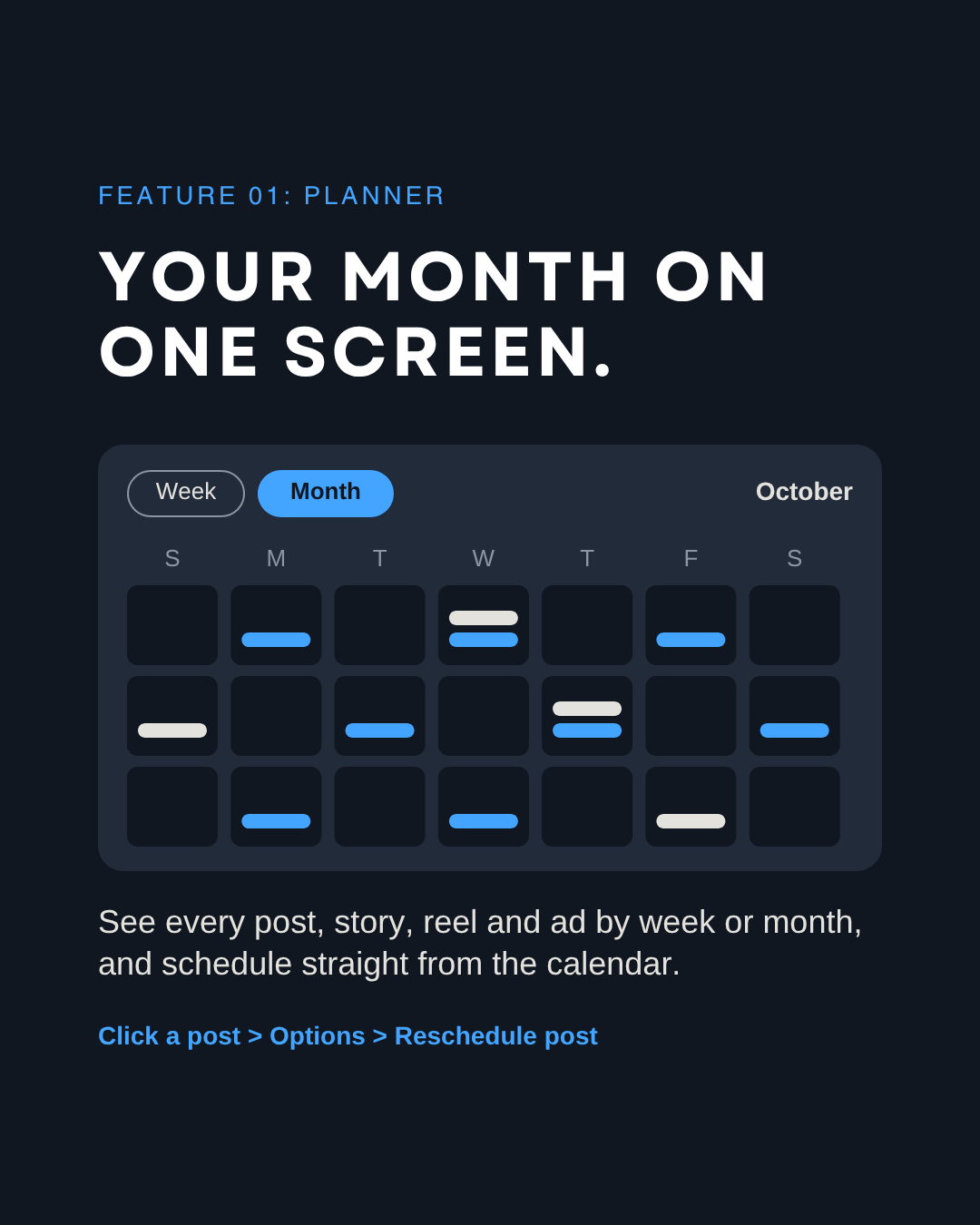
You’ll find them in two places: Planner, in the left menu, and Content > Posts and reels > Scheduled. Planner shows your posts, stories, reels and ads in a week or month view. You can filter by content type or by platform, and hover over a day to schedule something new straight from the calendar. [Screenshot 8]
How do you reschedule a post?
- Go to Content > Posts and reels > Scheduled.
- Find the post, click the … menu, then Manage post > Reschedule post. [Screenshot 9]
- Pick the new date and time, then click Reschedule.
You can also do it from Planner: click the post in the calendar, click Options, then Reschedule post. The same menu lets you edit the post, duplicate it, move it back to drafts or delete it.
Can you schedule from your phone?
Yes. In the Meta Business Suite mobile app, tap Content, pick the type of content at the top (posts, reels or stories), tap Create, add your text and media, tap Next, then Schedule for later. Choose the date and time and tap Schedule. Your scheduled content shows up in Planner.
What should you check before a scheduled post goes live?
Here’s what we do for every client account at 33 Genesis Road:
- Schedule it ahead. Nothing gets posted in a rush.
- Check both previews in the composer, Facebook and Instagram.
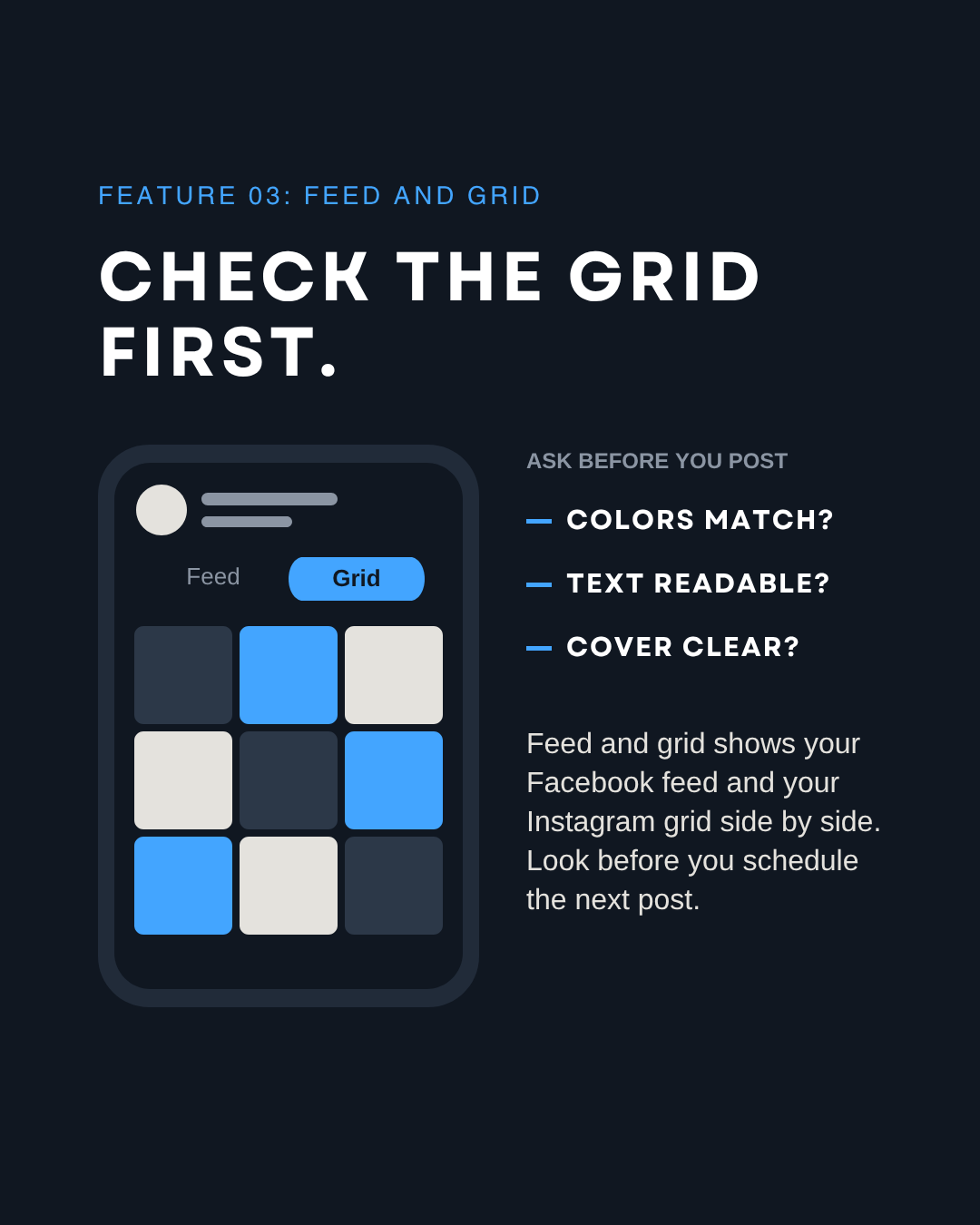
- Open Content > Feed and grid. It shows your Facebook feed and your Instagram grid side by side, so you can see if the next post fits: do the colors match, is the text readable, is the cover clear? [Screenshot 10]
- Want to know which version works better? Test it on ads, not on posts. Our best performing organic posts become ads, and we A/B test those ads in Ads Manager.
How does an ad A/B test work? In Ads Manager, Meta splits your audience into random groups that don’t overlap, so each person sees only one version of the ad. You can test the creative, the audience or the placement. Meta then compares the cost per result of each version and shows you the winner.
Change one thing at a time, so you know what made the difference.
FAQ
Is Meta Business Suite free?
Yes. Meta describes it as a free platform for managing your Facebook Page, Instagram account and ads in one place.
Can you schedule Reels and Stories in Meta Business Suite?
Yes. You can create and schedule posts, stories and reels for Facebook and Instagram, and see them all in Planner.
Why can’t I schedule a post for 5 minutes from now?
For Facebook Page posts, Meta needs at least 20 minutes. You can schedule up to 29 days ahead.
Can I A/B test Instagram content?
Yes, as ads. Meta Business Suite only tests Facebook Page posts, but an A/B test in Ads Manager works for ads that run on Instagram and Facebook.
Can Meta Business Suite answer messages for me?
Yes, with Inbox automations. Go to Inbox, then Automations, to set up an away message, answers to frequently asked questions, or replies to messages that contain specific keywords. They work across Messenger, Instagram and WhatsApp when those accounts are connected. Keyword automations are only available on desktop.
Sources: Meta Business Help Center: How Meta Business Suite works; Create and manage posts in Meta Business Suite on desktop; Post Facebook and Instagram content from Meta Business Suite; Save, schedule and reschedule posts in Meta Business Suite; Schedule a post and manage scheduled posts for your Facebook Page; Use Planner in Meta Business Suite on desktop; Create A/B content tests in Meta Business Suite on desktop; About Inbox automations in Meta Business Suite; Schedule Facebook and Instagram content on the Meta Business Suite mobile app (all read September 2026).